Certificate renewal

We were still in testing grounds for this site. Being a video chat application, we needed time to gauge the performance and did not want our site to be fully indexed to give us scope for change. Now, taking your suggestion into account and also the time since we initiated this project, I have set up a permanent redirect from www host to @.

When it comes to adding the certificate, that is usually taken care of in the conf file. It should not be an issue. By the way, what is the normal time for the propagation to go through for the change in SSL expiration date to be reflected?

This is what the output was from my end after successful manual renewal,
Your cert will expire on 2020-11-10. To obtain a new or tweaked
version of this certificate in the future, simply run certbot
again. To non-interactively renew all of your certificates, run
“certbot renew”

2 Likes

You need to install the cert per my long, previous post. You still have the old cert installed.. You do have it installed and working on aioexplorer.com.

Wise choice. I actually prefer the non-www for my own sites. I'm not seeing your redirect though in my browser. Based on getting different content I'm guessing they're pointing different places.

Seems you got the cert installed though.

Your www is still serving your old cert though.

2 Likes

Thanks for the reminder on the second part. I guess that I opened the port to the default file. If you are oline, can we walk through the steps to make sure that I have the right port open?

2 Likes

I’ll try to help you as best I can. Wish I could get @9peppe in here with us. He’s usually lightning with these things.

1 Like

I am right here -

  1. Initiated the installation process using the install command
  2. I opted for aioexplorer.com
  3. See a list of server blocks - I am trying to activate only the aioexplorer.com.conf file and this is what I am seeing right now,

Which server blocks would you like to modify?


1: File: /etc/nginx/sites-enabled/default
Addresses: [::]:443 ssl, 443 ssl
Names: aioexplorer.com
HTTPS: Yes

2: File: /etc/nginx/sites-enabled/aioexplorer.com.conf
Addresses: [::]:443 ssl, 443 ssl
Names: www.aioexplorer.com
HTTPS: Yes

3: File: /etc/nginx/sites-enabled/default
Addresses: [::]:443 ssl, 443 ssl
Names: _
HTTPS: Yes

4: File: /etc/nginx/sites-enabled/default
Addresses: [::]:443 ssl, 443 ssl
Names: *.aioexplorer.com
HTTPS: Yes


Select the appropriate numbers separated by commas and/or spaces, or leave input
blank to select all options shown (Enter ‘c’ to cancel):

1 Like

Interesting. So it looks like your new cert got installed for the default nginx for aioexplorer.com. It seems confusing that you have separate blocks for both. You honestly need /etc/nginx/sites-enabled/aioexplorer.com.conf running for aioexplorer.com and the other 3 will cause you headaches. I’m still wondering why your redirect is not working.

I was trying to change from yes to no for all the default options and that did not seem to help either.

1 Like

I’m wondering about @9peppe 's comment about Jitsi doing something to nginx’s configuration. I’ll need to do some more research and get back to you later. If @9peppe or one of the others with much more experience with this pops in before then, we’ll share notes. I have a feeling there is a great deal of simplification to be had here in terms of configuration.

How about I rename the default file to something else and then try to go through installation process?

1 Like

You could try that, but I’m not exactly sure what will happen. That lack of redirect has me wondering. I’ll check back with you later. I got called out.

I’ve only got a second, but I wandered across the following and thought it may be useful. It gives a jitsi example for nginx ssl.

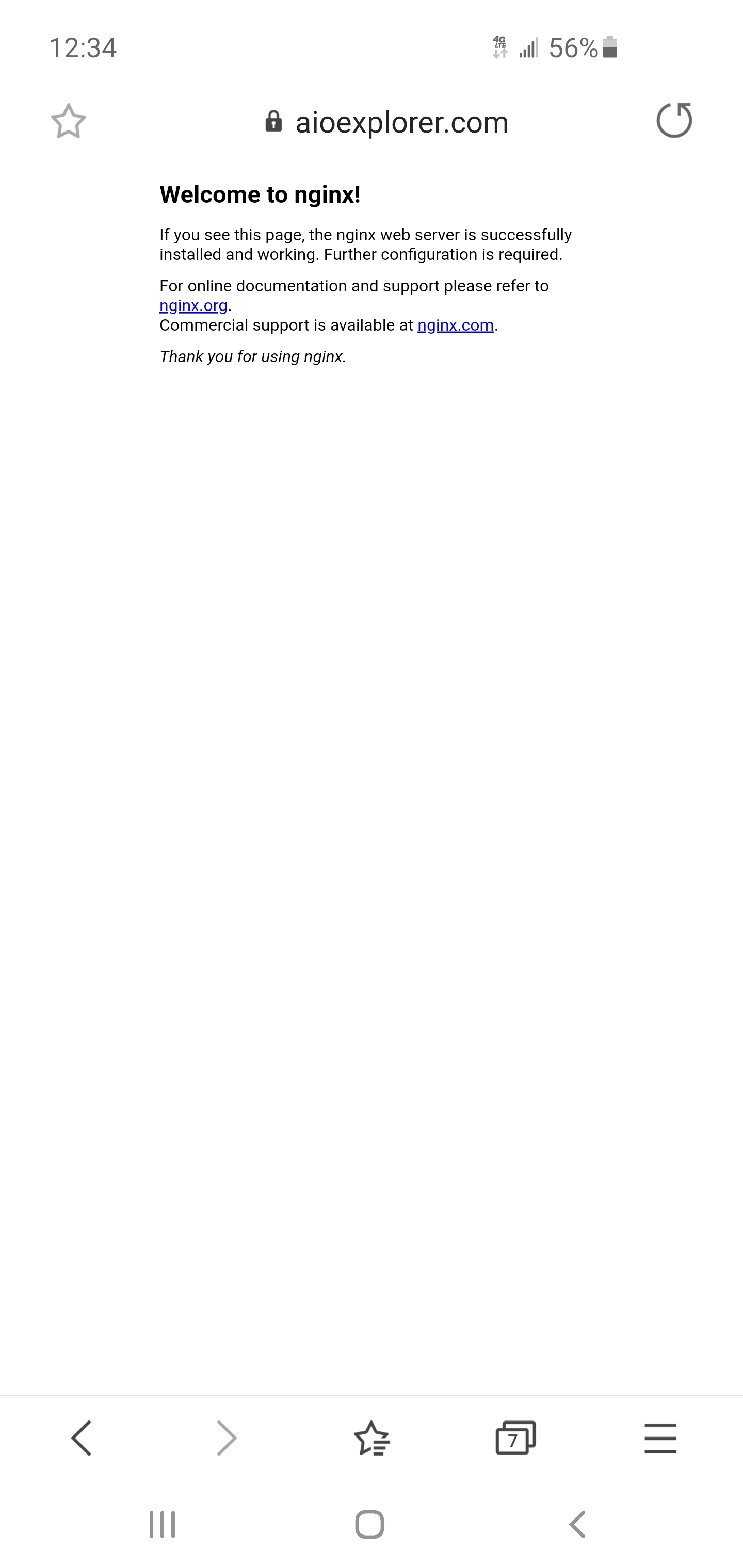
I already have this one. It was working - right? But, now, for some reason, the SSL is getting deployed to default rather aioexplorer.com.conf, which should take me to the landing page or the webroot. Anyways, I have deleted the default from sites-enabled to see whether it makes a difference.

1 Like

Alright, I’m back for a bit. Where are we at?

Can you dump the contents of /etc/nginx/sites-enabled/aioexplorer.com.conf here so we can take a look under the hood?

So, just to be founded in some basics:

2. But if you want to use a different certificate or you want to choose a different challenge type of Let's Encrypt (see below for details), you should create that certificate first and then install jitsi-meet and choose I want to use my own certificate.

1 Like

Sorry for the multiple posts. Guess I’ve been stifled for having too many edits on my posts and now must make new posts to add anything for the next 5 hours.

You need to choose “I want to use my own certificate” in order to use a dns challenge for your wildcard certificate instead of the default http challenge that the jitsi script uses.
1 Like

I have two config files.

  1. Domainname.conf
  2. Default

On domainname.conf:
erver_names_hash_bucket_size 128;

server {
if (host ~ ^[^.]+\.aioexplorer\.com) {
return 301 https://$host$request_uri;
} # managed by Certbot

listen 80;
listen [::]:80;
server_name fqdn;

location ^~ /.well-known/acme-challenge/ {
   default_type "text/plain";
   root         /root/directory
}
location = /.well-known/acme-challenge/ {
   return 404;
}
location / {
   return 301 https://$host$request_uri;
}

}

server {
listen 443 ssl http2;
listen [::]:443 ssl http2;
server_name fqdn;

ssl_protocols TLSv1 TLSv1.1 TLSv1.2;
ssl_prefer_server_ciphers on;
ssl_ciphers "#####"

add_header Strict-Transport-Security "max-age=31536000";
ssl_certificate /location/to//fullchain.pem; # managed by Certbot
ssl_certificate_key /#####/privkey.pem; # managed by Certbot

root root/directory;

# ssi on with javascript for multidomain variables in config.js
ssi on;
ssi_types application/x-javascript application/javascript;

index index.html index.htm;
error_page 404 /static/404.html;

gzip on;
gzip_types text/plain text/css application/javascript application/json;
gzip_vary on;

location = /config.js {
    alias /directory;
}

location = /external_api.js {
    alias /root/directory/libs/external_api.min.js;
}

#ensure all static content can always be found first
location ~ ^/(libs|css|static|images|fonts|lang|sounds|connection_optimization|.well-known)/(.*)$
{
    add_header 'Access-Control-Allow-Origin' '*';
    alias /usr/share/jitsi-meet/$1/$2;

}

# BOSH
location = /http-bind {
    proxy_pass      http://localhost:5280/http-bind;
    proxy_set_header X-Forwarded-For $remote_addr;
    proxy_set_header Host $http_host;
}

# xmpp websockets
location = /xmpp-websocket {
    proxy_pass http://127.0.0.1:5280/xmpp-websocket?prefix=$prefix&$args;
    proxy_http_version 1.1;
    proxy_set_header Upgrade $http_upgrade;
    proxy_set_header Connection "upgrade";
    proxy_set_header Host $http_host;
    tcp_nodelay on;
}

location ~ ^/([^/?&:'"]+)$ {
    try_files $uri @root_path;
}

location @root_path {
    rewrite ^/(.*)$ / break;
}

location ~ ^/([^/?&:'"]+)/config.js$
{
   set $subdomain "$1.";
   set $subdir "$1/";

   alias /root/directory/aioexplorer.com-config.js;
}


#Anything that didn't match above, and isn't a real file, assume it's a room name and redirect to /
location ~ ^/([^/?&:'"]+)/(.*)$ {
    set $subdomain "$1.";
    set $subdir "$1/";
    rewrite ^/([^/?&:'"]+)/(.*)$ /$2;
}

# BOSH for subdomains
location ~ ^/([^/?&:'"]+)/http-bind {
    set $subdomain "$1.";
    set $subdir "$1/";
    set $prefix "$1";

    rewrite ^/(.*)$ /http-bind;
}

# websockets for subdomains
location ~ ^/([^/?&:'"]+)/xmpp-websocket {
    set $subdomain "$1.";
    set $subdir "$1/";
    set $prefix "$1";

    rewrite ^/(.*)$ /xmpp-websocket;
}

}

2 Likes

Is this actually named aioexplorer.com.conf?

Yep. Now, it looks like www.aioexplorer.com is working. Could you check from your end?

1 Like